
Exporting files and folders
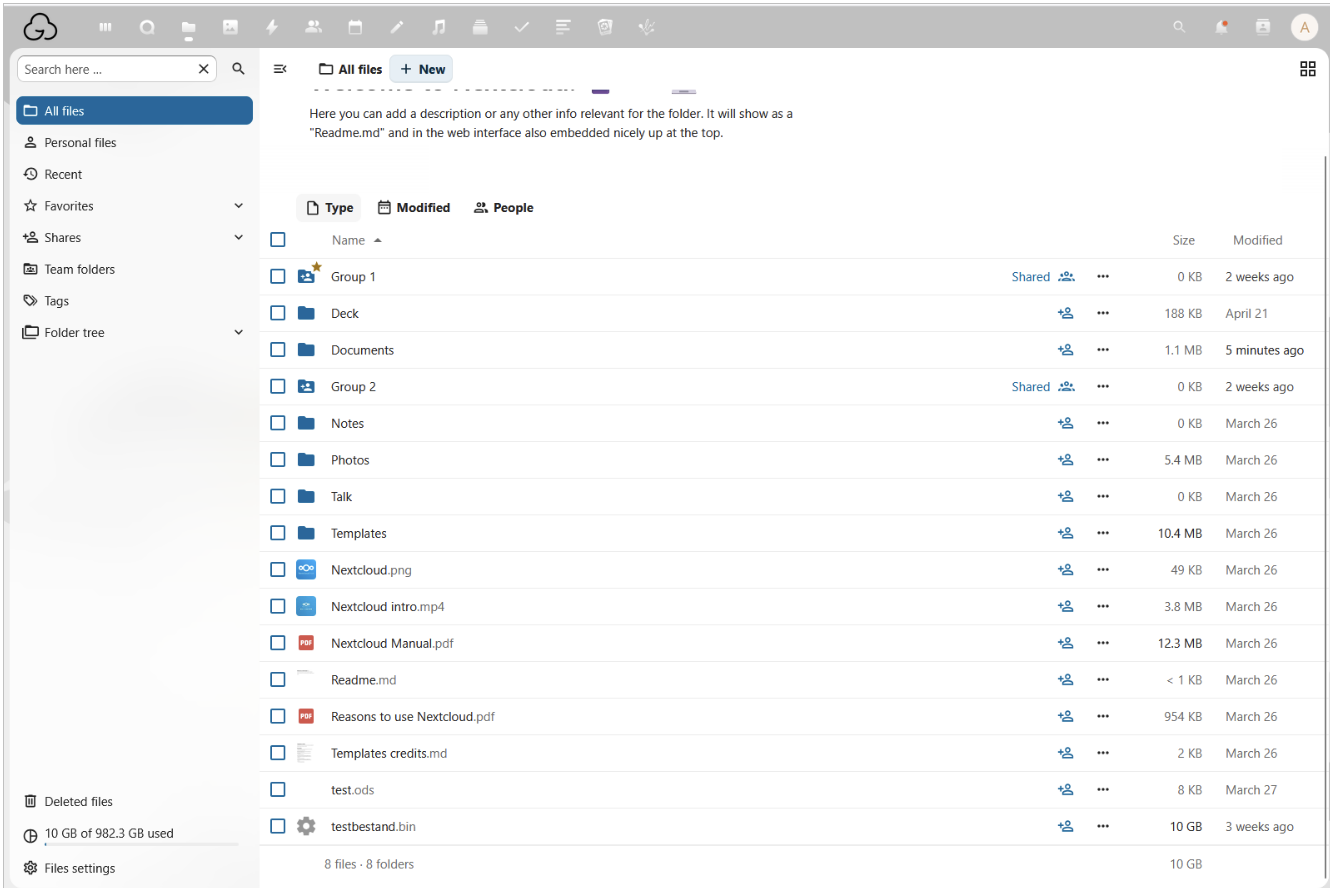
Log in to your Nextcloud environment and go to Files in the left-hand menu. From there you can download a single file, a whole folder, or all your files at once.
Downloading everything at once
- Go to the root folder of your files.
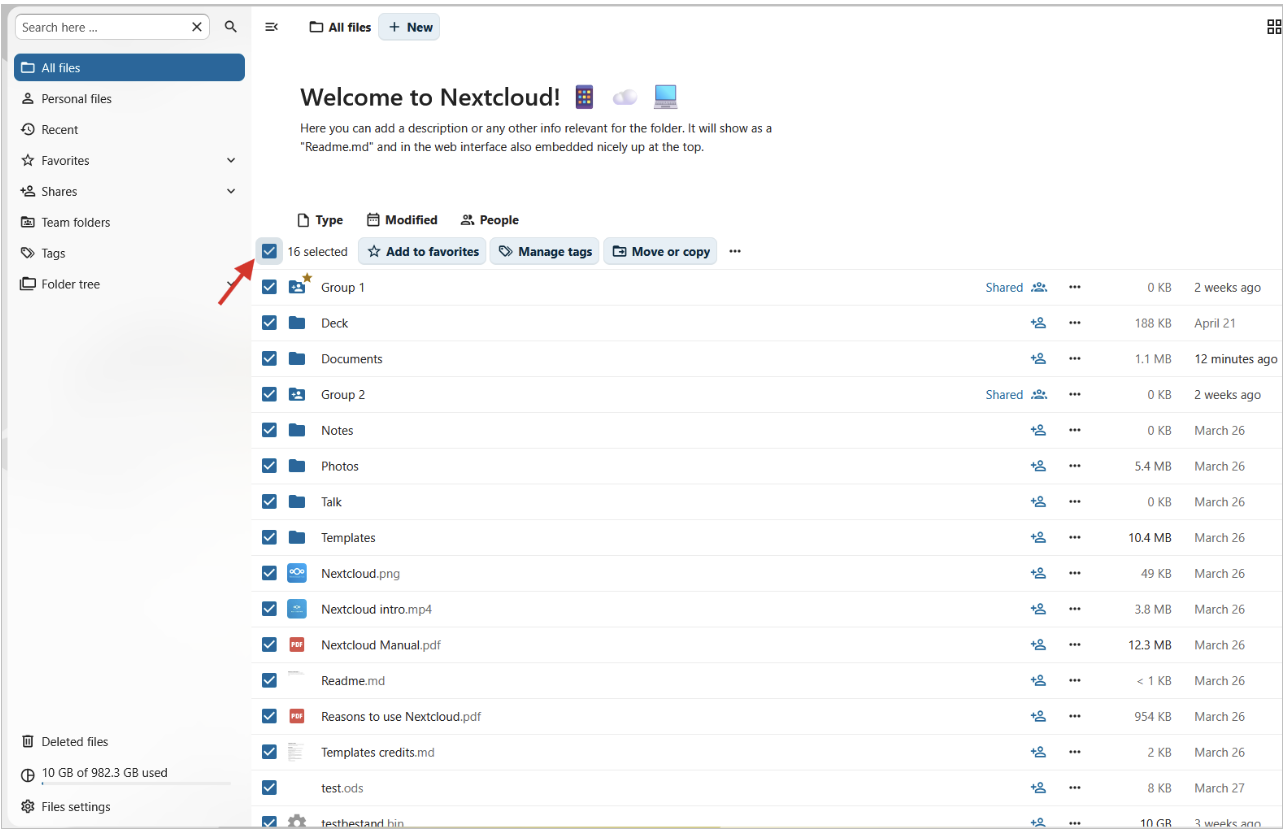
- Click the button in the top-left corner above your files.
- Click the three dots next to “Move or Copy” and select Download.
Downloading a single folder
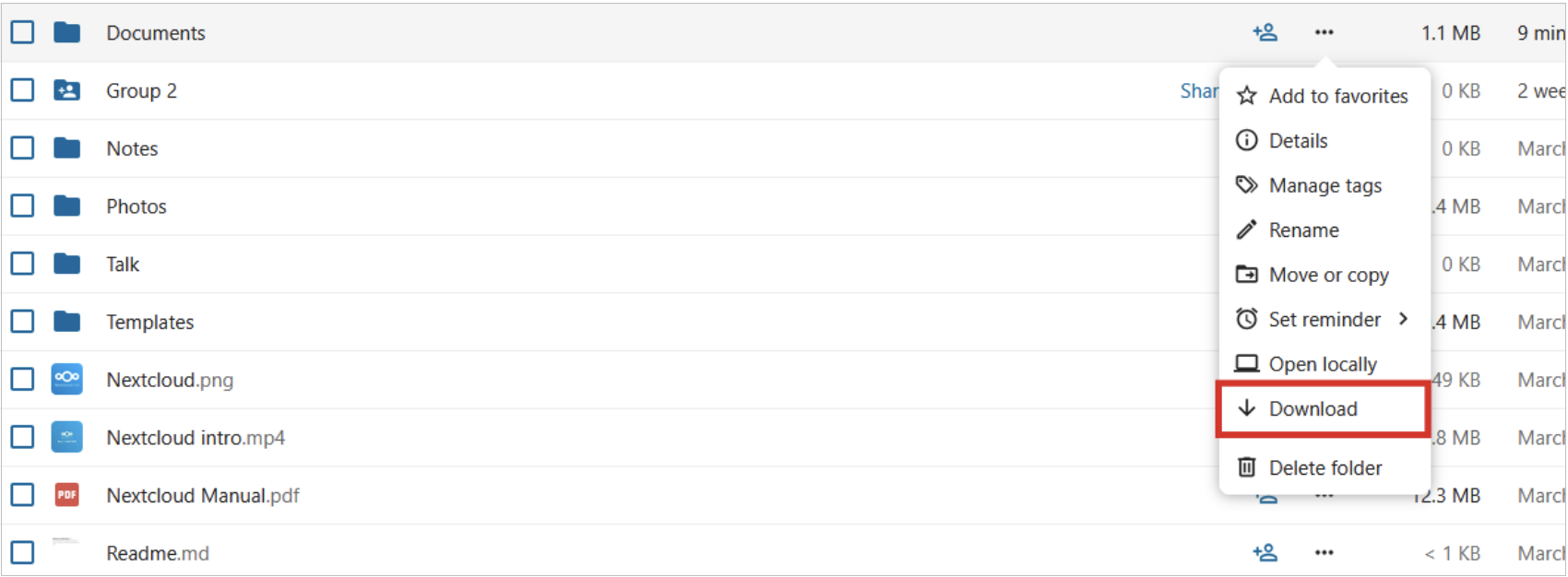
- Find the folder you want to download.
- Click the menu (⋮) next to the folder.
- Select Download. Nextcloud automatically creates a ZIP file.
- Wait for the download to finish, then unzip the file.
Downloading a single file
- Find the file.
- Click the menu (⋮) next to it.
- Select Download. The file will be saved to your default downloads folder.
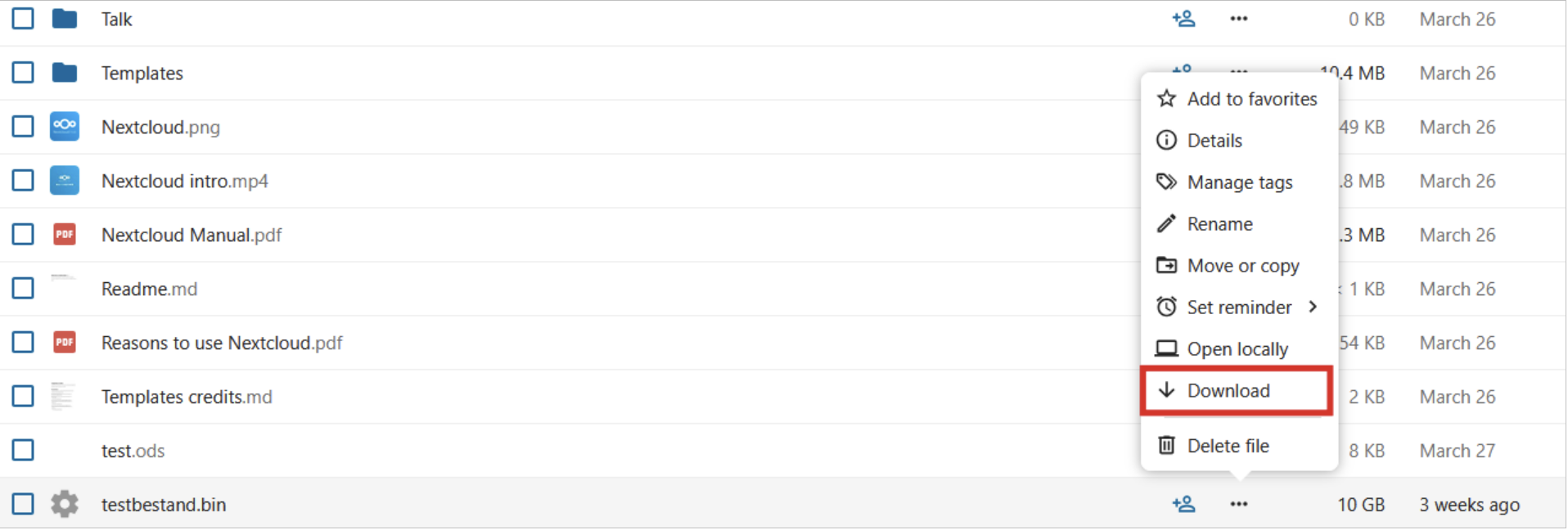
Afterwards, check your Downloads folder to make sure everything is there and opens correctly.
Tip: for large folders, creating the ZIP file can take a while. If the download doesn’t work in one go, try downloading the contents in smaller batches, or use the Nextcloud Desktop Client instead.
Exporting Contacts
- Log in to your Nextcloud environment.
- Click Contacts in the top menu.
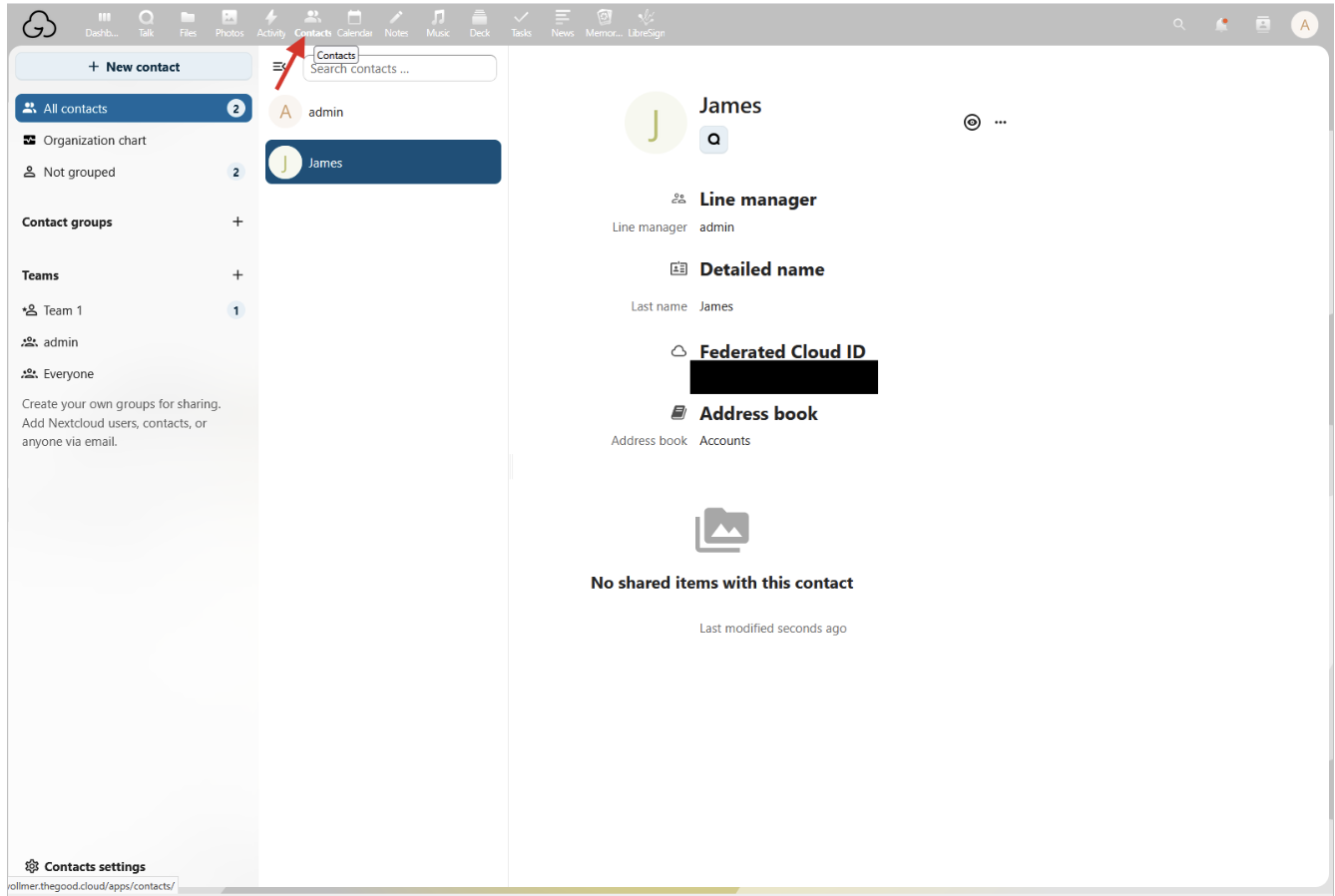
- Click the gear icon in the bottom-left corner (Contacts Settings).
- If you have multiple address books, click the three dots (…) next to the one you want to export.
- Click Download.
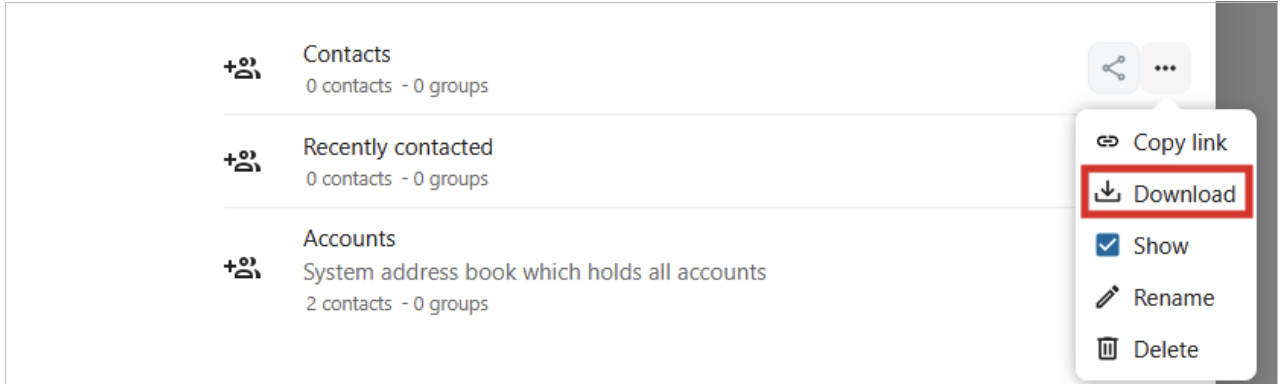
Your contacts will be downloaded as a .vcf file (vCard), ready to store or import into another contacts app.
Exporting your Calendar
- Log in to your Nextcloud environment.
- Click Calendar in the top menu.
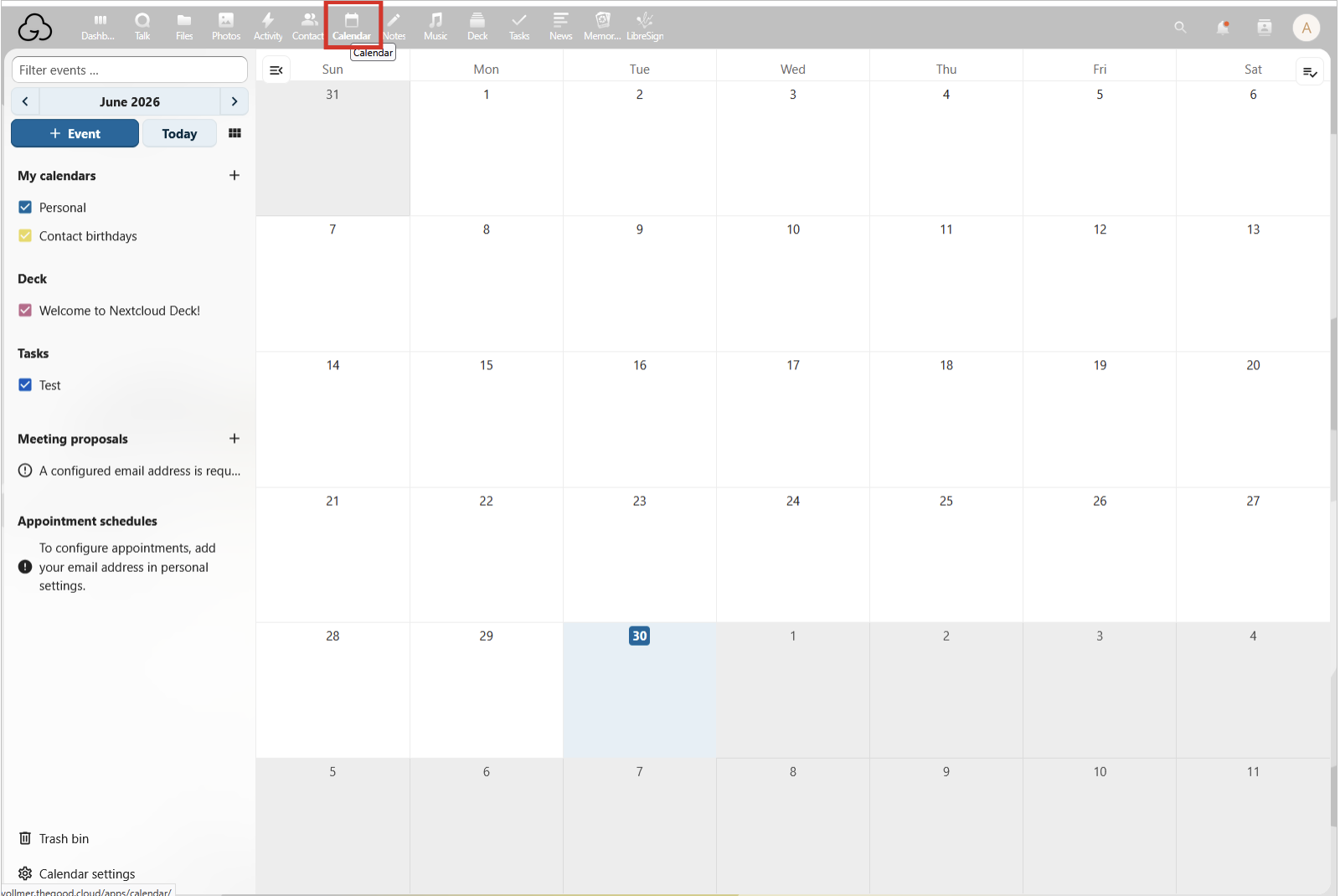
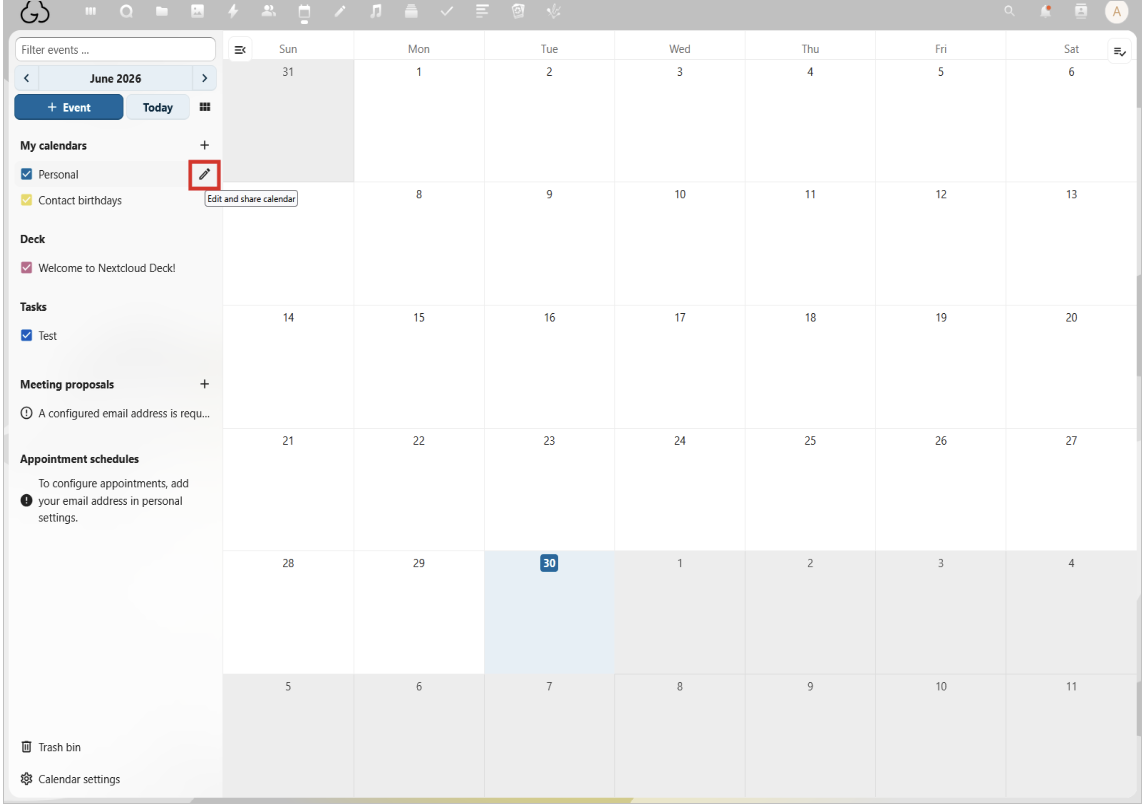
- Find the calendar you want to export in the left sidebar.
- Click the pencil icon next to the calendar name.
- Select Export.
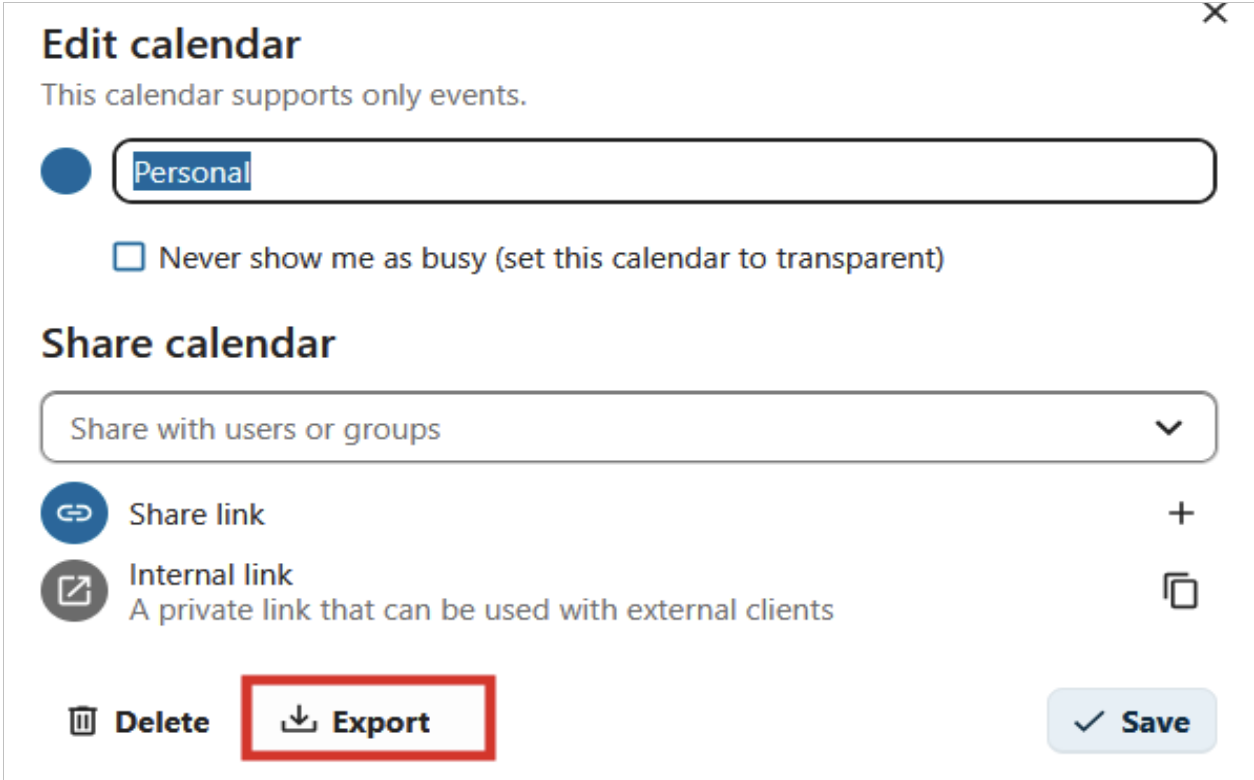
Your calendar will be downloaded as an .ics file (iCalendar), which you can import into another calendar or mail application.